SOLID
Opaque cover
Use black, white, or a custom solid color when the original value should not remain readable. This is the preferred option for passwords, tokens, and IDs.
Web screenshot redaction
PrivacyShot lets you redact a screenshot with the right level of control: automatic suggestions for speed, manual selection for certainty, and an opaque cover for information that must not be read.
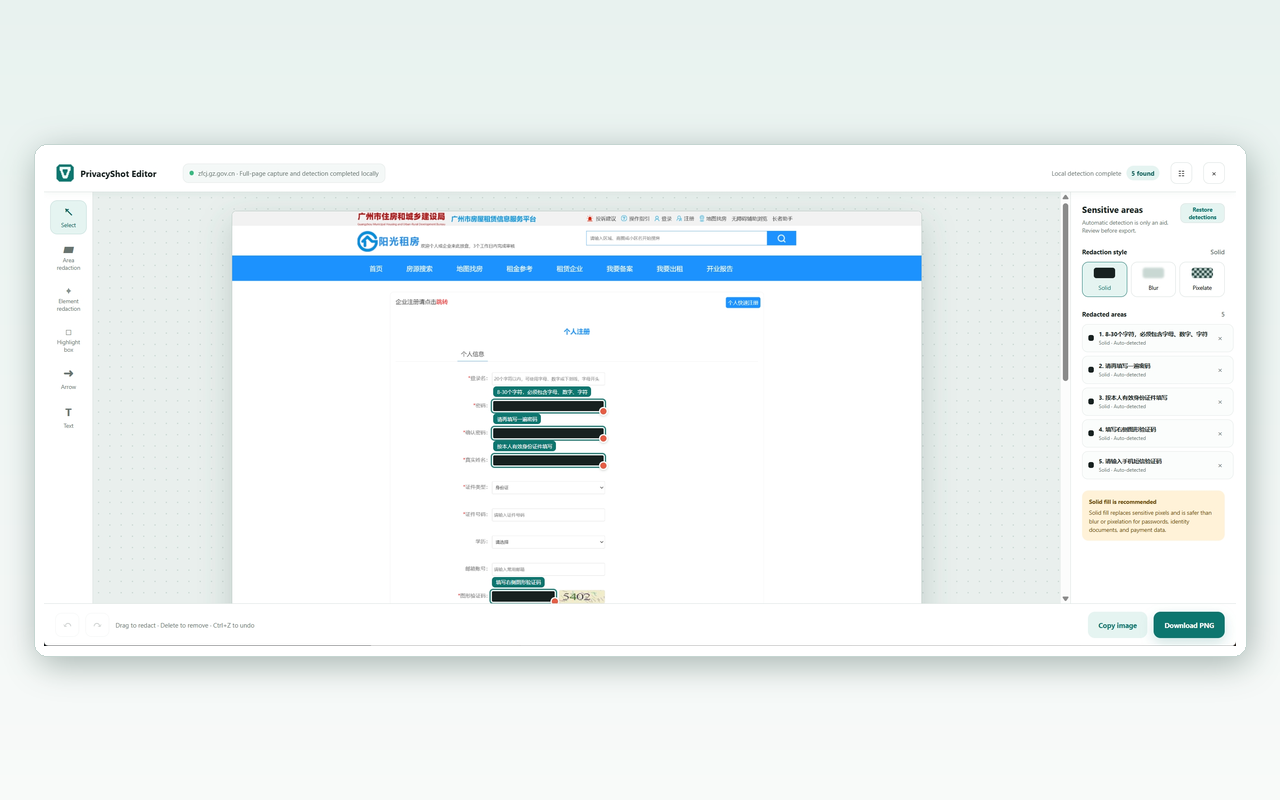
Three practical layers
Use black, white, or a custom solid color when the original value should not remain readable. This is the preferred option for passwords, tokens, and IDs.
Use blur or mosaic when you want to preserve a sense of the underlying layout while reducing detail in less sensitive context.
Drag a rectangle, select a page element, or add a small arrow, highlight, or label to make the final image clearer.
A safer editing habit
PrivacyShot keeps the privacy controls in the same editor as the screenshot tools. You can add context without moving the original image to another service.
Blur is not the same as deletion. For highly sensitive information, use a fully opaque cover and verify that the original value cannot be inferred from the surrounding context.
Download the extension and keep the page, image, and export steps local.
Download PrivacyShot