01
Detect likely sensitive areas
Local rules look for password fields, phone numbers, email addresses, identity numbers, bank-card candidates, IP addresses, and custom keywords.
See what it can detectLocal-first screenshot privacy
PrivacyShot captures a web page, flags likely passwords, phone numbers, emails, IDs, and other sensitive fields, then lets you cover them before copying or downloading a PNG.
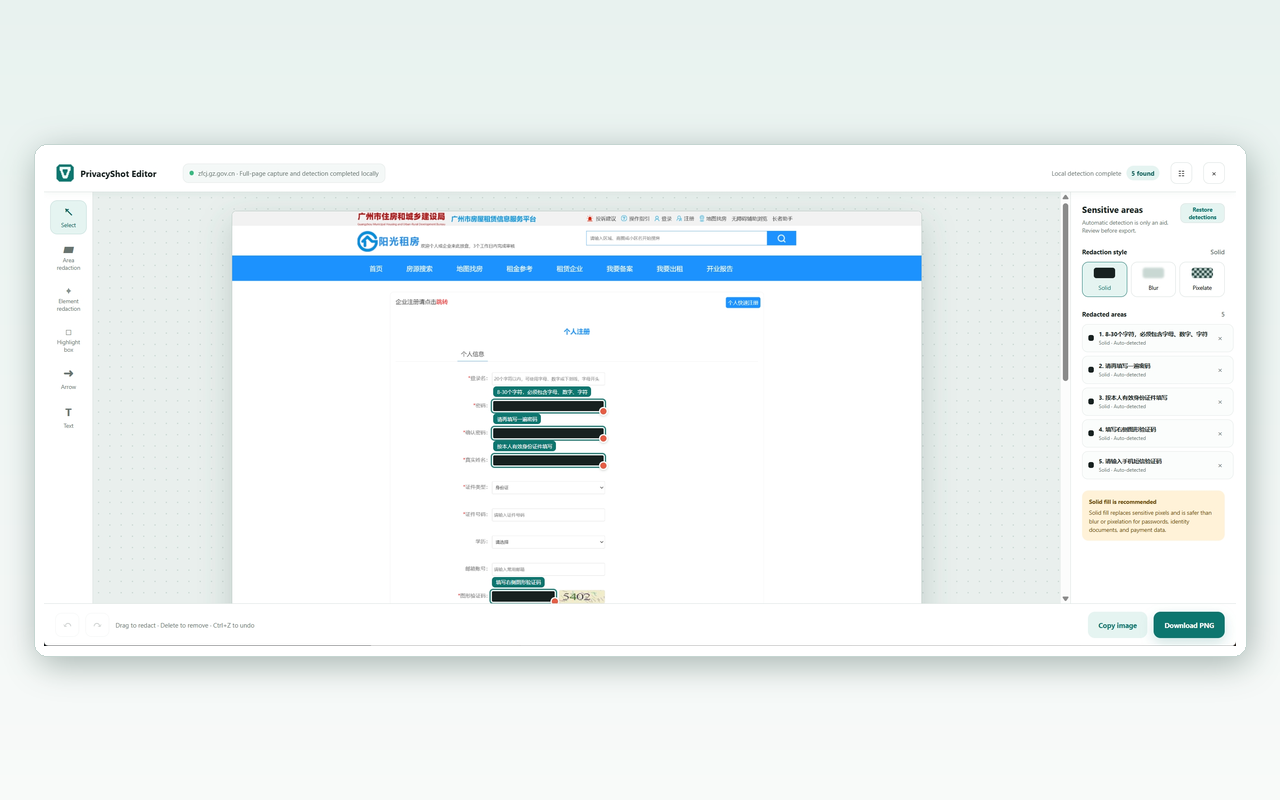
Private by design
PrivacyShot is deliberately focused: one page capture, one review step, one clean image ready to share.
Local rules look for password fields, phone numbers, email addresses, identity numbers, bank-card candidates, IP addresses, and custom keywords.
See what it can detectUse an opaque cover for high-sensitivity data, or choose blur, mosaic, manual rectangles, element selection, arrows, highlights, and short labels.
Explore redaction toolsExport the finished PNG to your clipboard or downloads folder. PrivacyShot does not send the page, screenshot, or form values to a server.
Read the local workflowHow it works
Keep your original page in front of you and handle the screenshot in the same browser.
Click PrivacyShot when you are on the page you want to explain or report.
Local rules mark suspected sensitive fields and text without a cloud OCR request.
Remove false positives or add your own covers and light annotations.
Share the processed image after you have checked the visible data yourself.
Made for real work
Help a customer, file a bug, document an internal system, or teach a workflow without exposing the real account data behind the screen.
Explore use casesHide names, phone numbers, order details, and account identifiers before replying.
Share reproducible UI evidence while keeping tokens and test records out of the ticket.
Prepare safer training material from ERP, CRM, OA, and other business systems.
Privacy promise
Capture, detection, editing, and export are designed to run locally. Settings are stored locally too, and there is no account or screenshot history by default.
Always review before sharing. Automatic detection is a helpful signal, not a guarantee. Check the final image for anything you do not want to disclose, especially on sensitive internal pages.
FAQ
No. The screenshot, page text, form values, redaction areas, and exported image are processed in the browser. PrivacyShot does not require an account or cloud storage.
PrivacyShot is packaged as a Manifest V3 extension for Chrome and Edge. Protected browser pages such as browser settings and the Chrome Web Store cannot be captured.
No. It identifies suspected sensitive information with local rules. Review the result and add a manual cover whenever something important is not detected.
PrivacyShot protects one screenshot. StepWise records a complete browser workflow and turns multiple actions into a reusable guide.
Install the local-first redaction tool, review the page, and share only the context your team needs.
Download PrivacyShot